Адміністрування –> Планувальник завдань –> Створити запис
- Найменування завдання Створення архіву
- Запуск завдання Щодня
- Час наступного запуску 19.02.2018 22:30 (наступного дня)
- Зберігати 3 останніх копії


Адміністрування –> Планувальник завдань –> Створити запис
Если user забыл свой пароль, а учетная запись Администратора не отключена и без пароля (что в основном так и есть), то сброс пароля сводиться к цепочке простых действий:
Перезагружаемся и проверяем.
Грузимся с предварительно записанной на CD или флешку Active@ Password Changer (платная)
Грузимся с предварительно записанным на CD или флешку ERD Commander (бесплатная)
Главное отличие DaRT 10 – это то, что вместо отдельных пакетов DaRT для каждой из ОС Windows Vista, Windows 7, Windows 8.0, Windows 8.1 и Windows 10 можно использовать один и тот же загрузочный образ, разрядность которого (32 или 64) должна соответствовать разрядности Windows, с которой предстоит работать. А для обеспечения возможности работы еще и с Windows XP / 2000 достаточно наличие ERDC 2005/2008 или MS DaRT 5.
Скачать образ DaRT 5.0 – для работы с операционными системами Windows 2000/XP, приблизительно 197Мб.
Скачать образ DaRT 10.0 – для работы с операционными системами Windows Vista/7/8.x/10, приблизительно 556Мб.
Оптимальным решением будет создание мультизагрузочной флэшки с возможностью выбора нужного DaRT при загрузке, и включающей дополнительные инструменты для диагностики и восстановления системы.
Если при загрузке MS DaRT 10 не обнаруживает установленную ОС Windows, то либо неверно выбрана разрядность DaRT (должна соответствовать разрядности системы – 32 или 64), либо поврежден системный раздел диска.
Довольно часто приходится сталкиваться с такой ситуацией, что на сайте производителя того или иного устройства оргтехники (принтер, сканер, факс и т. д.), отсутствует необходимый драйвер, а вместо этого написано, что он доступен через Центр обновления Windows. Не смотря на несомненное удобство такого подхода, есть масса случаев, когда он может быть неудобен, а именно:
Конечно можно пойти и скачать драйвер с различных сайтов в интернете, однако, никто не даст гарантий, что он будет рабочим, или что это будет не вирус или ему подобный зловредный софт. Но есть и другой выход – воспользоваться поиском на странице каталога Центра обновления Майкрософт.
Поиск следует проводить по наименованию модели необходимого устройства. После ввода нужной модели, и нажатия кнопки “Найти“, выбираем нужный файл драйвера, и скачиваем его. Он будет запакован в cab файл, который нужно распаковать – для этой цели можно использовать бесплатный архиватор 7zip. После этого можно будет установить драйвер через диспетчер устройств, используя распакованные файлы драйвера.
В качестве примера разберем установку драйвера на старый принтер HP LaserJet 5L в 32-разрядной операционной системе Windows 7.
Если зайти на сайт производителя, то там последняя операционная система семейства Windows, на которую есть драйвер – Windows XP. На компьютере на который нужно установить принтер – Windows 7. Поэтому прощаемся с официальным сайтом, и идем в каталог центра обновлений Windows.
Скачиваем нужный, он оказывается в формате cab. Берем бесплатный архиватор 7zip, распаковываем им cab файл, и получаем необходимые файлы для установки драйвера.
Далее начинаем стандартную процедуру установки драйвера принтера.
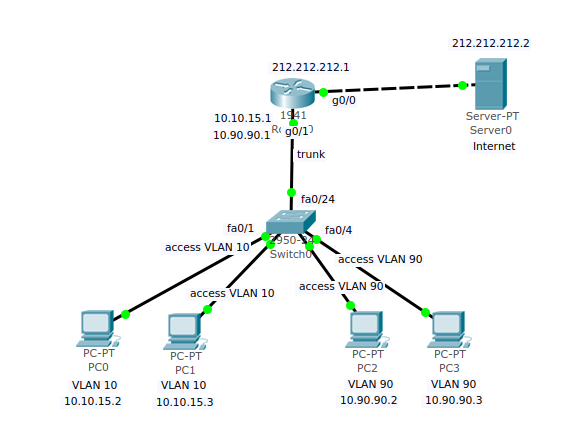 Задача разбить сеть на VLAN и поднять каждому DHCP-server
Создаем vlan по образу и подобию.
# cat /etc/sysconfig/network-scripts/ifcfg-enp5s9.10
VLAN=yes
DEVICE=enp5s9.10
PHYSDEV=enp5s9
ONBOOT=yes
BOOTPROTO="static"
IPADDR=10.10.15.1
PREFIX=24
# cat /etc/sysconfig/network-scripts/ifcfg-enp5s9.90
VLAN=yes
DEVICE=enp5s9.90
PHYSDEV=enp5s9
ONBOOT=yes
BOOTPROTO="static"
IPADDR=10.90.90.1
PREFIX=24
/etc/sysconfig/dhcpd, add the name of the interface to the list of DHCPDARGS:# Command line options here DHCPDARGS="enp5s9.10 enp5s9.90"
По умолчанию dhcpd пишет два основных log файла, /var/lib/dhcpd/dhcpd.leases — список выданных адресов и /var/log/messages — ошибки и все остальное, проблема в том что в /var/log/messages хранятся логи не только dhcpd но и все остальные, что делает поиск проблем очень сложной задачей. Для того что бы нам перенаправить поток логов в нужный файл и не зацепить лишнего мы используем параметр log-facility который указывали в настройках DHCP-сервера.
Создать папку в которой будут храниться наши лог-файлы:
# mkdir /var/log/dhcp
Создать файл logrotate дабы все не хранилось в одном файле и периодически очищалось, для этого в папке /etc/logrotate.d/ создаем файл dhcpd в котором следующее содержимое
# cat /etc/logrotate.d/dhcpd
/var/log/dhcp/dhcpd.log {
    rotate 4
    missingok
    daily
    sharedscripts
    create 0644 root root
    postrotate
	/bin/kill -HUP `cat /var/run/syslogd.pid 2> /dev/null` 2> /dev/null || true
    endscript
}
Ну и последнее наше действие в файле /etc/rsyslog.conf добавляем параметр с комментарием, который и будет перенаправлять все наши логи в нужный нам файл.
# DHCPD Log file
local5.*                                                /var/log/dhcp/dhcpd.log
В данном случае local5 служит в качестве маркера, по которому можно направить поток логов в нужное русло, всего таких маркеров 7 и если это занять вы будете использовать любой из local1-7.
Копируем образцы
# cp /usr/share/doc/dhcp*/dhcpd.conf.example /etc/dhcp/
Приводим к такому виду dhcp.conf:
option domain-name "my.server.com";
option domain-name-servers 192.168.113.1, 8.8.8.8;
default-lease-time 600;
max-lease-time 7200;
authoritative;
log-facility local5;

## START Потом отключить
subnet 10.10.5.0 netmask 255.255.255.0 {
}
## END

## VLAN 10 Pool
subnet 10.10.15.0 netmask 255.255.255.0 {
range 10.10.15.20 10.10.15.100;
option routers 10.10.15.1;
option domain-name "my.server.com";
option domain-name-servers 192.168.113.1, 8.8.8.8;
option broadcast-address 10.10.15.255;
default-lease-time 600;
max-lease-time 7200;
}

## VLAN 90 Pool
subnet 10.90.90.0 netmask 255.255.255.0 {
range 10.90.90.40 10.90.90.100;
option domain-name "my.server.com";
option domain-name-servers 192.168.113.1, 8.8.8.8;
option broadcast-address 10.90.90.255;
option routers 10.90.90.1;
default-lease-time 600;
max-lease-time 7200;
}
После того как все параметры заданы и все файлы заполнены нужной информацией, можно запустить DHCP-сервер, поставить его на автозапуск при включении и проверить все ли у нас работает правильно
systemctl start dhcpd
systemctl enable dhcpd
По умолчанию ПК из разных VLAN не видят друг друга. Но бывают ситуации, когда это нужно.
# vim /etc/sysctel.conf
net.ipv4.ip_forward=1

# sysctl -p
# service network restart
Add these two lines (place them according to your iptables file configuration):
if_lan10="enp5s9.10"
if_lan90="enp5s9.90"
-A FORWARD -i $if_lan10 -o $if_lan90 -m state --state NEW,RELATED,ESTABLISHED -j ACCEPT
-A FORWARD -i $if_lan90 -o $if_lan10 -m state --state NEW,RELATED,ESTABLISHED -j ACCEPT
При запуске MS Word 2010 на Windows XP вываливается с ошибкой:
точка входа в процедуру EnumCalendarInfoExEx не найдена в библиотеке DLL KERNEL32.dll
Гугление показало, что всему виной последние обновления Офиса, а именно:
У меня из этого списка были только KB4462157 и KB4462174. Удаление их вылечило программу.
Monitoring on interface eth0
tcpdump -i eth0 -n port 67 and port 68
tcpdump filter to match DHCP packets including a specific Client MAC Address:
tcpdump -i br0 -vvv -s 1500 '((port 67 or port 68) and (udp[38:4] = 0x3e0ccf08))'
tcpdump filter to capture packets sent by the client (DISCOVER, REQUEST, INFORM):
tcpdump -i br0 -vvv -s 1500 '((port 67 or port 68) and (udp[8:1] = 0x1))'
I’ve been doing this line of work for far too long and I can honestly say that you are supporting blind unless you use a packet sniffer to troubleshoot connection problems.
Lots of support “engineers” have really well educated guesses. There are lots of reboot this, restart that, blah blah blah.. It’s really just a bunch of guess work.
When you actually know what the computer is saying then you will know exactly what is broken and can fix it in one step instead of ten guesses.
A tool that can let you listen in to what a computer is saying on a network is TCPdump.
I know the word packet sniffer can be intimidating to some, but once you’ve seen TCPdump in action you’ll understand that its simple and easy to read. You’ll wonder how you ever survived without it.
In this tutorial we’ll look at the very first step needed to get online in most networks, DHCP. Without properly setup IP information a computer will never get online.
Before you can find the problem you have to know your protocol. Below I will use real packets captured on a live network, explain what they mean and how to spot problems. I will also give some examples of common reasons for failures and some quick ideas on how to resolve them.
Here is a list of common options I use with TCPdump almost every time I listen in.
-v shows more information about the packet. You can use -vv or -vvv for even more.
-n disables name resolution so your not waiting on DNS responses to show the packet.
-e shows link layer information (MAC Address)
-s sets how much of the packet to see. 0 shows full packet.
-i sets the interface to use
DHCP traffic operates on port 67 (Server) and port 68 (Client). So we can capture the appropriate traffic with the following expression.
port 67 or port 68
The tcpdump statement would look like this.
tcpdump -vnes0 -i eth0 port 67 or port 68
A successful DHCP should contain 4 packets.
The DISCOVER packet
The first packet should be the client trying to discover its DHCP information.
16:42:18.79906400:1f:3c:9d:68:f2 > ff:ff:ff:ff:ff:ff, ethertype IPv4 (0x0800), length 342: (tos 0x0, ttl 128, id 44982, offset 0, flags [none], proto UDP (17), length 328) 0.0.0.0.68 > 255.255.255.255.67: BOOTP/DHCP, Request from 00:1f:3c:9d:68:f2, length 300, xid 0xbbe4078f, Flags [none]
          Client-Ethernet-Address 00:1f:3c:9d:68:f2
          Vendor-rfc1048 Extensions
            Magic Cookie 0x63825363
            DHCP-Message Option 53, length 1: Discover
            NOAUTO Option 116, length 1: Y
            Client-ID Option 61, length 7: ether 00:1f:3c:9d:68:f2
            Hostname Option 12, length 11: "FA-MCKENZIE"
            Vendor-Class Option 60, length 8: "MSFT 5.0"
            Parameter-Request Option 55, length 11:
              Subnet-Mask, Domain-Name, Default-Gateway, Domain-Name-Server
              Netbios-Name-Server, Netbios-Node, Netbios-Scope, Router-Discovery
              Static-Route, Option 249, Vendor-Option
            Vendor-Option Option 43, length 2: 220.0
The packet begins with a timestamp. Since we are displaying link layer information, the next bit is the sender and destination MAC addresses. You can see that the destination MAC address is all F’s. This means it’s a broadcast packet. Because the sender doesn’t know specifically who to ask for its DHCP information, it yells to everyone that can hear.
The next bit of information is about the protocol that was used in this packet. We can see that its an IPv4 packet and its UDP (protocol 17). The next part contains the senders IP address. At this time they don’t have one so its all 0’s. And since the sender is broadcasting the packet, the destination ip is 255.255.255.255. We can also see in this section the sender is using port 67 trying to reach a server on port 68, this is as expected.
Below the packets header information we have all the options they are using. We know its a DISCOVER from Option 53. We can see all the standard DHCP information that may be required (Option 55), the Hostname (option 12) and lots of other useful information for diagnosing a problem.
The OFFER packet
The second packet should be obvious. We should expect to see the server offering the DHCP information to the client.
16:42:18.800018 00:30:18:a8:c6:13 > 00:1f:3c:9d:68:f2, ethertype IPv4 (0x0800), length 342: (tos 0x10, ttl 16, id 0, offset 0, flags [none], proto UDP (17), length 328) 10.5.0.1.67 > 10.5.0.198.68: BOOTP/DHCP, Reply, length 300, xid 0xbbe4078f, Flags [none]
          Your-IP 10.5.0.198
          Client-Ethernet-Address 00:1f:3c:9d:68:f2
          Vendor-rfc1048 Extensions
            Magic Cookie 0x63825363
            DHCP-Message Option 53, length 1: Offer
            Server-ID Option 54, length 4: 10.5.0.1
            Lease-Time Option 51, length 4: 60
            Subnet-Mask Option 1, length 4: 255.255.0.0
            Domain-Name Option 15, length 10: "sandara.ca"
            Default-Gateway Option 3, length 4: 10.5.0.1
            Domain-Name-Server Option 6, length 4: 10.5.0.1
Starts off with a timestamp then the senders MAC address, this time its the server’s MAC address. Since the server knows who to send this packet to, it makes it unicast and sets the destination to the client. Still an IPv4 UDP packet. The packet originated from the server and it uses the IP address that it’s offering as its destination.
Option 53 indicates that this is the OFFER packet. The options offered in the packet contain some very useful information like lease time in seconds (Option 51) DNS Server (Option 6), Subnet Mask (Option 1), Default Gateway (Option 3) and the IP address the client can use, conviently labeled Your-IP.
The REQUEST packet.
The next two packets are for confirmation. The client will start off by requesting confirmation from the server that the DHCP information it was offered is correct.
16:42:18.802420 00:1f:3c:9d:68:f2 > ff:ff:ff:ff:ff:ff, ethertype IPv4 (0x0800), length 377: (tos 0x0, ttl 128, id 44983, offset 0, flags [none], proto UDP (17), length 363) 0.0.0.0.68 > 255.255.255.255.67: BOOTP/DHCP, Request from 00:1f:3c:9d:68:f2, length 335, xid 0xbbe4078f, Flags [none]
          Client-Ethernet-Address 00:1f:3c:9d:68:f2
          Vendor-rfc1048 Extensions
            Magic Cookie 0x63825363
            DHCP-Message Option 53, length 1: Request
            Client-ID Option 61, length 7: ether 00:1f:3c:9d:68:f2
            Requested-IP Option 50, length 4: 10.5.0.198
            Server-ID Option 54, length 4: 10.5.0.1
            Hostname Option 12, length 11: "FA-MCKENZIE"
            FQDN Option 81, length 27: "FA-MCKENZIE.sfaftusa.lan"
            Vendor-Class Option 60, length 8: "MSFT 5.0"
            Parameter-Request Option 55, length 11:
              Subnet-Mask, Domain-Name, Default-Gateway, Domain-Name-Server
              Netbios-Name-Server, Netbios-Node, Netbios-Scope, Router-Discovery
              Static-Route, Option 249, Vendor-Option
            Vendor-Option Option 43, length 3: 220.1.0
Option 53 indicates this to be the REQUEST packet. This packet is still a broadcast. The client still doesn’t have an IP address without confirmation first. And all the options to confirm show up like verifying the DHCP server (Option 54), verifying the IP address to use (Option 50) and so on,
The ACK packet
The fourth and final packet should be a confirmation by the DHCP server.
16:42:18.803152 00:30:18:a8:c6:13 > 00:1f:3c:9d:68:f2, ethertype IPv4 (0x0800), length 342: (tos 0x10, ttl 16, id 0, offset 0, flags [none], proto UDP (17), length 328) 10.5.0.1.67 > 10.5.0.198.68: BOOTP/DHCP, Reply, length 300, xid 0xbbe4078f, Flags [none]
          Your-IP 10.5.0.198
          Client-Ethernet-Address 00:1f:3c:9d:68:f2
          Vendor-rfc1048 Extensions
            Magic Cookie 0x63825363
            DHCP-Message Option 53, length 1: ACK
            Server-ID Option 54, length 4: 10.5.0.1
            Lease-Time Option 51, length 4: 60
            Subnet-Mask Option 1, length 4: 255.255.0.0
            Domain-Name Option 15, length 10: "sandara.ca"
            Default-Gateway Option 3, length 4: 10.5.0.1
            Domain-Name-Server Option 6, length 4: 10.5.0.1
This final packet has everything filled out as you would expect in the header. And in the options section contains the acknowledgement (Option 53)
Recap
The 4 packets to a successful DHCP
DISCOVER: Client connects to the network and sends out a broadcast discovery looking for its DHCP information.
OFFER: The server offers the DHCP information to the client
REQUEST: The client requests verification of the DHCP information
ACK: The server acknowledges the DHCP request
Aditional Notes
Sometimes you will not see the DISCOVER / OFFER and just see the REQUEST / ACK. This heppens when the client has already obtained a valid DHCP lease earlier and is just requesting to have it again before its lease time expires. Typically this is performed when half the lease has lapsed.
If the REQUEST is not valid anymore the server will send a NACK indicating to the client that it can no longer use this DHCP information. This should cause the client to start over with a DISCOVER.
Sometimes you will see repeated DISCOVER / OFFER but never a REQUEST from the client. This happens when the client either doesn’t receive the OFFER or doesn’t like it for some reason. Perhaps a firewall is blocking it, they have a poor connection, or simply they’re using a Windows computer.
It’s common for Windows Vista to never even start its DHCP process. It will just refuse to DISCOVER and complain that the connection is “limited or no connectivity”. You can try to diagnose the problem and tell it to reset the network card and/or get new IP information. If this fails to start it then I find adding a static IP and then setting it back to DHCP will get it going. You may even need to restart the DHCPC service. Its Vista.
https://www.linux.com/blog/troubleshooting-connection-problems-tcpdump-dhcp
http://sysadmin.wikia.com/wiki/DHCP_debugging_with_tcpdump
Memcache – это протокол для доступа к простому хранилищу значений ключей, поддерживаемому памятью, через сетевой сокет. Сервер memcached не выполняет какую-либо форму контроля доступа и является оптимальным для определенных кэшей, используемых в веб-клиенте Kolab (и связанных с ним HTTP-интерфейсах доступа), поскольку позволяет избежать лишних входов, контроля доступа и других подобных соображений политики программного обеспечения, а также как дисковый I/O.
В этой статье описывается установка и настройка одного сервера memcached для использования с веб-клиентом Roundcube для Kolab.
ПРЕДУПРЕЖДЕНИЕ. Эта процедура приведет к тому, что все существующие сеансы будут считаться недействительными, и все пользователи, которые в данный момент активны, будут эффективно выведены из системы с сообщением об ошибке «неверный сеанс».
На указанном сервере memcached установите пакет memcached, включенный в стандартные дистрибутивные репозитории;
# yum -y install memcached
Вы можете отредактировать / etc / sysconfig / memcached и увеличить MAXCONN, а также CACHESIZE (в мегабайтах).
Если вы увеличиваете MAXCONN, чтобы разрешить больше подключений к memcached, до более чем 1024, вы также должны предоставить файл /etc/systemd/system/memcached.service.d/limits.conf со следующим содержимым (и соответствующим номером):
[Service]
LimitNOFILE = 4096
Убедитесь, что служба memcached запущена и будет запущена при запуске системы;
# systemctl enable memcached
# systemctl start memcached
На веб-сервере установите пакет php-pecl-memcache;
# yum -y install php-pecl-memcache
Проверьте /etc/php.d/memcache.ini для настройки session.save_path, который должен отражать адрес, по которому доступен ваш memcached сервер;
; Use memcache as a session handler
session.save_handler=memcache

; Defines a comma separated of server urls to use for session storage
session.save_path="tcp://memcached.example.org:11211?persistent=0&weight=1&timeout=2&retry_interval=15"
Обратите внимание, что в этой статье не рассматриваются вопросы брандмауэра, но должно быть очевидно, что ваш сервер memcached должен быть доступен для наиболее ограниченного числа клиентов.
Перезапустите веб-сервер, чтобы новое расширение PHP стало доступным;
# systemctl restart httpd
Чтобы настроить веб-клиент (и связанные веб-приложения и приложения на основе HTTP), отредактируйте файл /etc/roundcubemail/config.inc.php и убедитесь, что доступны следующие параметры:
$ config ['memcache_hosts'] = Array ('memcached.example.org:11211');
Теперь можно использовать следующие механизмы хранения для использования memcached:
$ config ['session_storage'] = 'memcache';
Этот параметр определяет, где сеансы сохраняются. Обычно PHP сохраняет информацию о сеансе в локальной файловой системе (ограничение для одной системы), и вместо этого веб-клиент по умолчанию использует базу данных. Использование memcached предотвратит возникновение дискового ввода-вывода.
$ config ['imap_cache'] = 'memcache';
Кэш IMAP используется для списков папок, параметров контроля доступа, метаданных подписки и аннотаций папок. Особенно для большого количества папок или папок, которые часто изменяются (например, почтовые папки с большим трафиком), изменение механизма хранения для этого кэша для использования memcached улучшит производительность.
$ config ['ldap_cache'] = 'memcache';
Хотя кэш LDAP используется менее часто и менее широко, это последний из возможных шагов оптимизации, если речь идет об использовании memcached для этих типов кэшей.
https://kb.kolabenterprise.com/guides/increase-web-client-performance-with-memcache
http://php.net/manual/ru/apc.configuration.php
Task Manager --> New Task --> shutdown -s -t 0
Switch#conf t
Enter configuration commands, one per line. End with CNTL/Z.
Switch(config)#int range fa0/16 - 18
Switch(config-if-range)#shutdown
Смотрим:
# sh run
...
interface FastEthernet0/15
switchport access vlan 10
switchport mode access
no ip address
!
interface FastEthernet0/16
no ip address
shutdown
!
interface FastEthernet0/17
no ip address
shutdown
!
interface FastEthernet0/18
no ip address
shutdown
!
interface FastEthernet0/19
no ip address
!
...
Включение
Switch#conf t
Switch(config)#int fa0/7
Switch(config-if)#no shutdown
Switch#sh run
....
interface FastEthernet0/6
no ip address
shutdown
!
interface FastEthernet0/7
no ip address
!
interface FastEthernet0/8
no ip address
shutdown
!
....